Workspaces
Learn what a workspace is in SonicVox, how your personal one differs from a shared one, and exactly what changes when you switch between them.
What a Workspace Is
A workspace is the container everything in SonicVox belongs to: the people who can collaborate, the voices, clones and studio projects they share, and the account whose credits pay for the work.
Three things live at the workspace level:
- People — members, their roles, their seats and the groups they belong to
- Shared resources — voices, voice clones and studio projects that have been shared with a member or a group
- Money — in a paid workspace, the owner's plan gates what members can do and the owner's balance pays for it
Everything else stays with your account. Your sign-in, your profile, your Speech to Text jobs and your saved speaker profiles are the same in every workspace you open.
Your Personal Workspace
Every SonicVox account owns a workspace. It is created for you when you sign up, named My Workspace, and you can rename it at any time.
Joining someone else's workspace is in addition to your own, never instead of it. Accept an invite to a company workspace and you now belong to two: theirs, and the one you own. You keep your own workspace even if you are removed from theirs.
How Many You Can Have
The limit counts workspaces you own. Workspaces you have merely been invited into do not count against it.
| Your plan | Workspaces you can own |
|---|---|
| Free | 1 |
| Any paid plan | Up to 10 |
If you are on Free and already own your personal workspace, the New button on the workspace settings screen is disabled and the create action is refused server-side, not merely hidden. Upgrading raises the limit to the same 10 every paid plan gets.
A workspace name is 1–60 characters, and the URL slug is generated from it.
Switching Workspaces
The workspace you are currently in is called your active workspace. It decides which shared resources you see, where new work is filed, and — in a paid workspace you do not own — whose credits are charged.
- Open the profile menu
Click your avatar in the top-right of the app. The Workspace section lists every workspace you belong to, with a checkmark on the active one.
- Click the workspace you want
The switch is recorded server-side and the page reloads its data. The choice is stored in a cookie that lasts a year, and your membership is re-checked on every request afterwards — so losing access to a workspace immediately stops it from being active, whatever the cookie says.
- Confirm you are where you think you are
The same list appears at the top of Workspace settings, and the Music and Image & Video studios carry their own workspace picker when you belong to more than one. All three change the same setting: picking a workspace anywhere changes it everywhere.
Check the workspace name before a long session of work. It is the single setting that decides whose credits pay for what you are about to generate, and there is no way to move a charge afterwards.
Until you switch for the first time, SonicVox uses your oldest active membership as the active workspace.
What Changes When You Switch
This is the part that catches people out. Switching does not move your work anywhere — it changes which work you can see, where new work is filed, and who pays.
| When you switch | What happens |
|---|---|
| Voices, clones and studio projects you created | Still visible. You are their owner, so they follow you into every workspace. |
| Resources shared with you | Visible only in the workspace where the share was granted. A voice shared with you in a team workspace disappears from the list when you switch back to your own — it has not been revoked, you are simply looking at a different tenancy. |
| Workspace-wide visibility | Re-resolved for the new workspace. Owners and admins see everything filed in the workspace they administer; ordinary members see everything only if that workspace's Default Access for New Resources is set to Open. |
| New voices, clones and projects | Filed in the workspace that is active when you create them. |
| Who pays | If the active workspace belongs to someone else and its owner is on a paid plan, your generations bill the owner's balance. In your own workspace, or in any workspace whose owner is on Free, you pay for your own work. |
| Speech to Text jobs and speaker profiles | Unchanged. These are account-scoped and identical in every workspace. |
| Your credit balance | Unchanged. A balance belongs to an account, not to a workspace. |
Two related rules are deliberately different, and the difference is a safety property rather than an inconsistency:
- Filing a new resource can fall back to your oldest membership when you have never chosen a workspace.
- Billing never falls back. Work is charged to another person's balance only in a workspace you actively switched into, so nobody can be charged for work done in a workspace you never chose.
Pooled credits have their own ceilings and their own guide — see Workspace credits and pooled billing below.
Who Owns a Workspace
The owner is whoever created it, or whoever it was later transferred to. Ownership is not a role you can assign on the Members tab: there is exactly one owner, and the only way to move it is a transfer.
Ownership decides real things:
- The owner's live plan sets how many people can join and how many of them get a Full seat
- In a paid workspace, the owner's balance funds every member's generations
- The owner cannot be removed or suspended, and only the owner can delete the workspace
Transferring ownership
- Open General
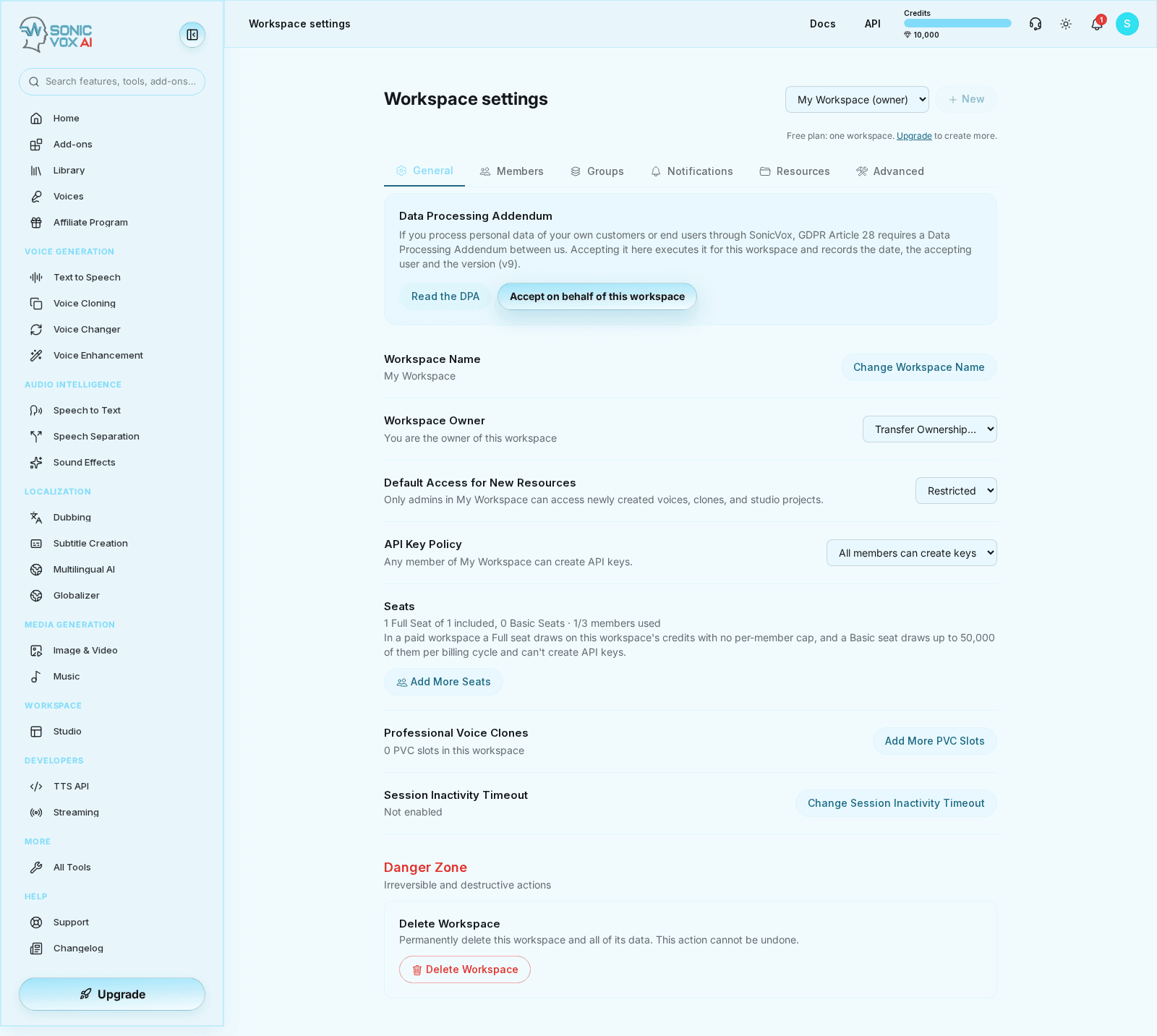
Go to Workspace settings → General. The Workspace Owner row shows a Transfer Ownership… picker, visible only when you are the owner.
- Pick the new owner
The list contains active members only — someone with a pending invite or a suspended membership cannot receive the workspace.
- Confirm
The new owner is promoted and you become an admin, so you keep access and lose only the owner-only powers.
A transfer is refused if the recipient cannot legally hold another workspace: someone on the Free plan who already owns one must upgrade first, and nobody can be pushed past the 10-workspace limit. The workspace's seat allowance is re-derived from the new owner's plan immediately after the transfer, so handing a large team to a smaller plan shrinks what that team is entitled to.
Deleting a workspace
Only the owner can delete a workspace, and the confirmation asks you to type the workspace name because the purge is irreversible and takes every member's shared voices, clones and projects with it — not only yours. Anyone left without a workspace afterwards, including you, gets a fresh personal one. Account-scoped data such as transcripts and speaker profiles is not touched; that is erased through account deletion instead.
Where the Settings Live
Workspace settings are at /app/settings/team — reachable from the profile menu under Workspace settings. Every control is re-checked server-side, so what you can change depends on your role in the workspace you are viewing, not on which buttons happen to render.

| Tab | What it is for |
|---|---|
| General | Workspace name, owner and ownership transfer, default access for new resources, API key policy, seat and Professional Voice Clone counts, session inactivity timeout, and the delete-workspace danger zone |
| Members | Invite people, set roles and seat types, set a per-member credit limit, suspend or remove members, and read your own seat and remaining allowance |
| Groups | The virtual Everyone group, custom groups, and billing groups that carry a shared credit budget |
| Notifications | Usage-threshold alerts emailed to the workspace's owner and admins |
| Resources | Share voices, voice clones and studio projects with a member or a group at viewer, editor or admin permission |
| Advanced | Enterprise controls: workspace-wide defaults, branding, audit log, member usage, media-model approvals, SCIM provisioning and SAML single sign-on |
The workspace switcher sits at the top of this screen, next to New. Switching there switches your active workspace app-wide, not just the settings you are reading.
Where to Go Next
- Workspace members and seats — roles, Full and Basic seats, invites and removals
- Workspace credits and pooled billing — who pays for a member's work, and the three ceilings that bound it
- Sharing voices and projects — grants, permissions and what a share does not do
- Workspace groups — Everyone, custom groups and billing groups
- Workspace usage alerts — thresholds, who gets emailed and how often