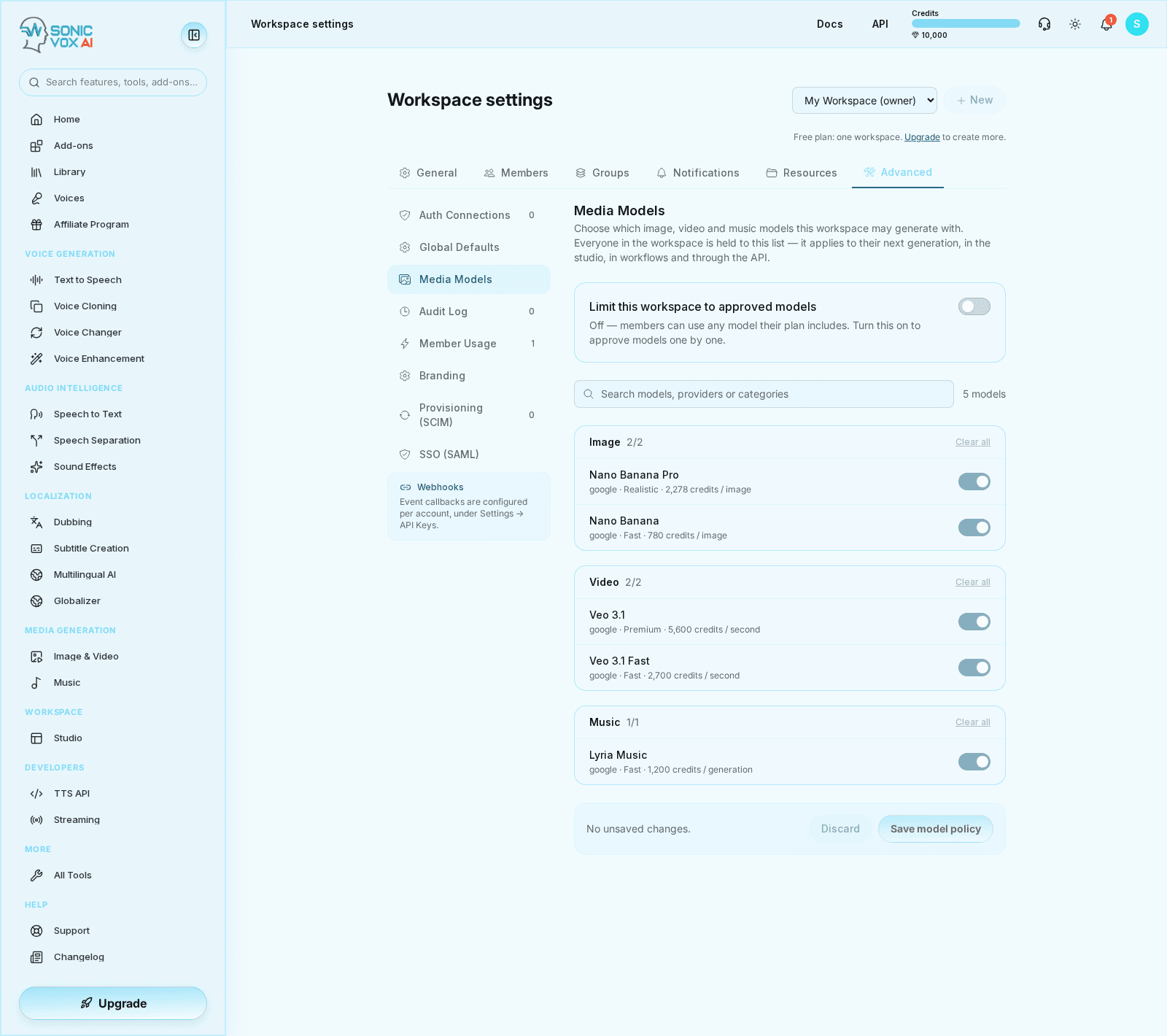
Choosing which media models your workspace can use
Restrict a workspace to an approved list of image, video and music models — how to set the list, what each state of it means, and exactly what the list does and does not stop today.
What the setting does
A workspace owner or admin decides which generation models the people in that workspace may run. The list covers the whole customer catalogue in one place: image models, image-editing models, video models and music models.
Most admins open this screen for one of two reasons. Either legal or brand has cleared a specific set of models and everything else is off the table, or the expensive video models are burning the workspace balance faster than anyone intended. The screen shows the per-unit credit price next to every model for exactly that second reason.
The list is a property of the workspace, not of a person. There is no per-member exception and no way to approve a model for one team and not another inside the same workspace. Split the teams into separate workspaces if you need different lists.
What is enforced today
Nothing yet. The screen loads, the toggles work, and saving genuinely writes your list to the workspace — but no generation is currently checked against it. A member can still pick and run any model in the catalogue their plan includes, in the studio, in workflows and through the API.
The check itself is written and the storage is live; what is missing is the call to it from the generation path. Until that lands, treat this screen as recording a decision, not as a control.
Do not rely on this list to stop spending or to keep an uncleared model out of your workspace. If you need those guarantees now, use the per-member credit limits and billing-group budgets on the Members and Groups tabs, which are enforced. See [Shared credits and spend limits](./workspace-credits.md).
Everything below describes what is stored and what the enforcement check does when it is reached, so that the list you save now is the list you meant.
Three states, not two
The stored list has three distinct states, and two of them look similar on screen while behaving very differently.
| State | How the workspace gets there | Meaning |
|---|---|---|
| No list | The restriction has never been turned on | No restriction at all. Every live and beta model in the catalogue stays available. This is the default and what every existing workspace has |
| A list of models | Restriction on, with models approved | Only the models on the list are approved. Everything else is refused |
| An empty list | Restriction on, with every model cleared | Nothing is approved. All image, video and music generation in the workspace is refused |
An empty list is a real, deliberate setting — not the same as having no list. It is the one way to stop media generation in a workspace outright, and the screen warns you before you save it.
Because "no list" is the default, the feature changes nothing for a workspace that never opens the screen. There is no deny-by-default state and nothing needed to opt out.
Set the list
- Open the Media Models section
Go to /app/settings/team, choose the Advanced tab, then Media Models in the left-hand list. Pick the workspace you are administering in the switcher at the top of the Team page first — the section always edits the workspace you have switched to.
- Turn on "Limit this workspace to approved models"
Turning it on for the first time ticks every model in the catalogue rather than starting from nothing. That is deliberate: your first save then matches what is already in force, so nobody halts a workspace by turning a switch on and walking away.
- Approve or clear models
Toggle a model individually, or use Approve all / Clear all on a modality group. The search box filters by model name, slug, provider or category. Models are grouped as Image, Image editing, Video and Music.
- Save the model policy
Nothing you toggle takes effect until you press Save model policy. Edits are staged on purpose, because this policy lands on colleagues mid-session rather than being a personal preference. Discard puts the staged toggles back to what is stored.
Saving is a full replacement of the list, not a merge. What is on screen when you save is the entire policy afterwards.
Turning the switch off and saving clears the list back to "no list" — the unrestricted default — rather than remembering your ticks for next time.
Who can change it
| Role in the workspace | Can see the list | Can change it |
|---|---|---|
| Owner | Yes | Yes |
| Admin | Yes | Yes |
| Member | Yes | Only with an explicit workspace-settings grant on their membership |
| Viewer | Yes | Only with an explicit workspace-settings grant on their membership |
Anyone who can see the section but not change it gets a read-only view with the reason stated on screen, and the toggles disabled. A save attempted without permission is refused by the server as well as hidden in the interface, so a crafted request cannot set the policy.
The policy applies to everyone in the workspace, including the owner and the admin who set it. There is no self-exemption.
What a member sees when a model is not approved
When the check is reached, the request is refused before any credits are reserved, and the message names the model and where to get it approved:
<model name> isn't approved for this workspace. A workspace owner or admin can allow it under Workspace → Advanced → Media Models, or pick one of the approved models.
Two things this refusal is not:
- It is not a hidden model. The model pickers, the studio and the public
/v1/image-video/modelslisting all show the full live and beta catalogue regardless of your list. A member browsing models sees unapproved ones and finds out at generation time. - It is not a charge. The check sits ahead of the credit reservation, so a refused generation costs nothing.
Internal utility models are never governed
The model catalogue also holds internal rows that are not models anyone picks — local video transforms such as thumbnailing, resizing and caption burn-in. They live in the same table so they share the pricing and metering machinery, and tools and workflow nodes call them by name.
These rows are exempt from the list twice over. They are excluded from the screen, so you cannot approve or unapprove them; and the enforcement check lets them through even when the workspace has an empty list.
The reason matters: an allowlist that caught them would let an admin who thought they were declining a video model silently break their own workspace's thumbnailing, with no way to see the connection. They are also refused outright as a customer-facing model — asking for one by name through the API returns an unknown-model error rather than billing it as a video generation.
Where the rule reaches
Every customer-facing image, video and music generation goes through one shared validation step before any work starts. That is why the list can be a single setting rather than one per surface.
| Surface | Uses the shared validation step | Checked against your list today |
|---|---|---|
| Image & Video studio | Yes | No |
| Music studio | Yes | No |
| Image, video and music workflow nodes | Yes | No |
Platform API POST /v1/image-video/generate | Yes | No |
The right-hand column is the enforcement gap described above, not a difference between surfaces — the check is missing for all of them equally. When it is wired into the shared step, all four are covered at once, including the paths that run without a signed-in user: a workflow node executing in the background and an API call authenticated by a workspace key both name a workspace, and that is all the check needs.
The same shared step already enforces the plan tier a model requires, your concurrency and daily generation limits, monthly image and video allowances, and the content-safety preflight.
Limits and behaviour worth knowing
| Behaviour | Detail |
|---|---|
| Models on a list | Up to 500. A larger save is refused whole |
| Applying a change | Replaces the stored list at once, for everyone. Nothing is grandfathered and there is no staged rollout |
| A job already running | Finishes. The list is evaluated when a generation is submitted, not while it runs |
| A model retired after you approved it | Kept in the stored list but ignored. The screen names the stale entries beneath the switch, and your next save drops them |
| Approving a model that has left the catalogue | Refused, with a prompt to reload the page. Only current catalogue entries can be stored, so a saved list never disagrees with what the screen shows |
| An unreadable or malformed stored list | Treated as no restriction, and logged. This is spend and usage governance over models the caller is already entitled to by plan, not a security boundary, so a bad row must not take a workspace's generation offline |
That last row is a deliberate trade. If you need a hard block on a model rather than a governance setting, the plan-tier gate on the model itself is the mechanism that fails closed.
What gets recorded
Saving writes an entry to the platform activity log naming who changed the policy, whether a restriction is now in force, and the approved slugs.
That entry does not currently appear in Advanced → Audit Log. That section lists events tagged with a workspace id, and the model-policy entry is written without one. Nothing is lost — the record exists — but you cannot read your own policy history from the workspace audit view yet.