Usage alerts and workspace settings
Set up the email alerts that warn your admins before a workspace runs out of credits, seats or voice slots, and configure the workspace-wide settings that live beside them.
Where these settings live
Open Workspace settings at /app/settings/team. The tabs are General, Members, Groups, Notifications, Resources and Advanced. The dropdown at the top right picks the workspace these tabs act on, and picking one also makes it your active workspace everywhere else in the product, so the switch follows you out of this page.
Any member can open the tabs and read what is set. Changing anything on General or Notifications requires the owner or an admin role, and the server re-checks that on every save regardless of what the screen lets you click. Ownership transfer and workspace deletion are owner-only.
Usage alerts
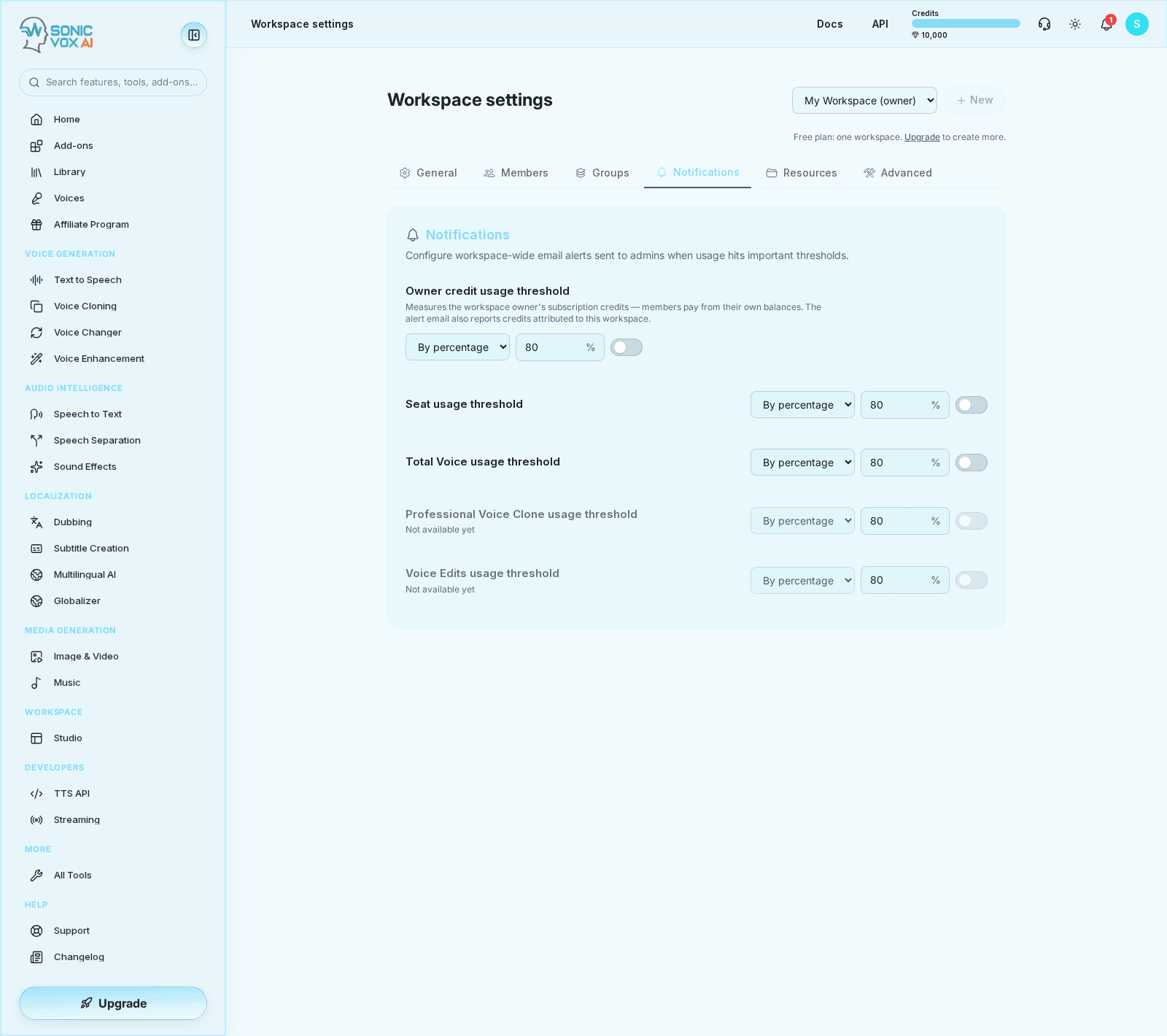
The Notifications tab holds five usage thresholds. Three of them are backed by a metric SonicVox can compute for a workspace and are evaluated every day. The other two are visible but inert.
!The Notifications tab with its five usage-threshold rows

| Row | What it measures | Status |
|---|---|---|
| Owner credit usage threshold | The subscription credits granted to the workspace owner this billing cycle, against how many of them are gone. | Evaluated daily |
| Seat usage threshold | Members of the workspace, against the member cap the owner's plan buys. | Evaluated daily |
| Total Voice usage threshold | Voices and voice clones stamped with this workspace, against the custom-voice limit on the owner's plan. | Evaluated daily |
| Professional Voice Clone usage threshold | Nothing. | Not available yet |
| Voice Edits usage threshold | Nothing. | Not available yet |
The last two rows are shown disabled and labelled Not available yet, and the server refuses a request to enable them. There is no counter behind either one, so an alert switched on there would never fire — treat them as placeholders, not as alerts that are merely quiet.
What the three live alerts count
- Credit. Top-ups the owner bought are excluded from both sides of the ratio, so buying more credits does not quiet the alert. In a paid workspace what members generate is billed to the owner's balance, so their spending is counted here too. The alert email additionally reports the credits attributed to this workspace during the cycle by everyone in it. The description printed under this row on screen still describes the older rule, where every member paid from their own balance.
- Seat. People who were invited and hold a member row but have not accepted yet are counted, because they are holding the seat. Suspended members are not counted. Invitations sent to an email address with no SonicVox account are not counted here, though they do hold a seat on the Members tab.
- Total Voice. Archived voices do not count, and a clone that already backs a saved voice is counted once rather than twice.
When the denominator cannot be resolved — no seat cap, no credit grant recorded, a plan with no custom-voice limit — that alert is skipped for the day instead of firing on a guess.
Percentage and absolute thresholds
| Mode | Allowed values | The alert fires when |
|---|---|---|
| By percentage | 1 to 100 | used ÷ limit reaches the threshold |
| By absolute | 1 to 100,000,000 | the used figure itself reaches the threshold |
Thresholds are whole numbers. The value is saved when you click away from the box or press Enter; an empty or non-numeric entry snaps back to what was stored. Switching a row to By percentage while it holds a value above 100 clamps it to 100. Every row starts at By percentage / 80 / off.
On plans with an unlimited member allowance the seat cap resolves to a very large placeholder, so a percentage seat alert never crosses. Use an absolute threshold on those workspaces.
Who is emailed, and how often
- Recipients are the workspace owner and every admin who has accepted their invitation, is not suspended, and has an email address on file. Members and viewers are never emailed, including the person whose generation crossed the line. If no admin has an email address, nothing is sent.
- Alerts are email only. Nothing appears in the in-app notification bell.
- Usage is evaluated once a day, at 04:30 UTC.
- Each alert fires at most once per period. Seat alerts dedupe per UTC calendar month; credit and voice alerts dedupe per the owner's billing cycle, falling back to the calendar month when the account has no cycle anchor. Lowering a threshold does not re-arm an alert that already fired in the current period.
Set the credit threshold with room to spare. Usage is checked once a day, so a workspace generating hard can pass 80 percent and empty the balance between two runs. The email tells you where you stood at the last check, not where you stand now.
Turn an alert on
- Open the Notifications tab. Go to
/app/settings/team, pick the workspace in the selector at the top, then choose Notifications. - Choose how to measure. Set the dropdown to By percentage for a share of the limit, or By absolute for a raw count of credits, seats or voices.
- Set the value. Type the number, then click away or press Enter. A green Saved banner confirms it.
- Switch the row on. Use the toggle at the end of the row. Rows start switched off, so a threshold on its own sends nothing.
If the controls are greyed out, you are on a member or viewer role and the tab is read-only for you.
General settings
The General tab covers the workspace's identity, its defaults for new work, and the destructive actions.
!The General tab of workspace settings

If your workspace still owes a Data Processing Addendum acceptance, a card for it sits above these rows; it disappears once accepted and never appears for workspaces with nothing outstanding.
Workspace name
Change Workspace Name accepts 1 to 60 characters and is open to owners and admins. The name is what everyone sees in the workspace selector, and it is the string you have to retype to delete the workspace — so give workspaces names you can tell apart at a glance.
Ownership transfer
Only the current owner sees this control, and only active members who have accepted their invitation appear in the list.
- Pick the new owner from the Transfer Ownership… dropdown on the Workspace Owner row.
- Confirm the dialog. The member you chose becomes the owner and you are demoted to admin in the same operation.
A transfer is refused if the new owner is on the Free plan and already owns a workspace, or if they already own ten workspaces. Everything the workspace inherits from its owner moves with the transfer: the member cap, the Full-seat allowance and the credit balance members draw on all come from the new owner's plan. If their plan buys fewer seats than the team currently uses, the newest members are suspended (never deleted) until the seats fit, and the new owner is notified so they can choose who to restore.
Default Access for New Resources
| Setting | What every live member of the workspace gets |
|---|---|
| Restricted (default) | Nothing beyond what has been shared with them explicitly on the Resources tab |
| Open | Viewer access to every voice, voice clone and studio project stamped with this workspace |
Despite the name, this is evaluated when a resource is read, against everything stamped with the workspace — not only against things created after you changed the setting. Switching to Open therefore exposes what is already in the workspace, and switching back to Restricted hides it again, leaving only the explicit grants.
Owners and admins hold admin permission over workspace-stamped resources under either setting. A resource that was merely shared into the workspace is not covered by this: it stays with its own owner's rules.
API key policy
All members can create keys is the default. Admins only stops anyone below admin from creating a personal API key while this workspace is their active workspace, and applies the same rule to workspace-scoped keys.
Two things this setting does not do. It does not touch keys that already exist: removing a member does not revoke the keys they minted, which is why the removal reports how many are outstanding and prompts an admin to rotate them. And it is not the only gate — a Basic seat cannot create personal API keys at all, whichever policy is set.
Session inactivity timeout
Set a value between 5 and 1440 minutes, or leave the box blank to disable it (the default). The policy that applies to a member is the one on the workspace they are currently switched to.
It is enforced in two places, which is what makes it worth setting:
- In the browser, a guard signs the member out once they stop moving the mouse, typing, scrolling or clicking for the configured period. This catches the tab someone walked away from.
- On the server, a session that makes no authenticated request for longer than the period is revoked, so the member is signed out on their next request. This half survives closing the tab, disabling JavaScript, or replaying the session cookie.
Changes reach live sessions within about a minute. Turning the timeout on for the first time signs the current sessions out once, on their next request, because there is no activity history yet to measure them against — expect a round of re-logins right after you enable it.
Seats
The Seats row reads like 2 Full Seats of 1 included, 0 Basic Seats · 2/5 members used. The first figure is Full seats in use against the number your plan includes, then Basic seats in use, then total seats held against the member cap. The total counts members who have not accepted yet and email invitations that are still live, because both hold a seat.
| Owner's plan | Members | Full seats included |
|---|---|---|
| Free | 3 | 1 |
| Starter, Creator | 5 | 1 |
| Pro, Scale | 10 | 3 |
| Business | Unlimited | 10 |
| Enterprise | Unlimited | 11 by default, set by your agreement |
A Full seat draws on the workspace's credits with no per-member ceiling and may create API keys. A Basic seat draws up to 50,000 of those credits per billing cycle and may not create API keys. The owner always occupies a Full seat, since they are the one paying.
The Full-seat allowance is enforced when you invite someone on a Full seat or promote an existing member to one. It is not applied retroactively, so a workspace can legitimately show more Full seats in use than its plan includes after a plan change — nobody is demoted behind your back.
The Professional Voice Clones row below reports a slot count from the owner's plan. SonicVox has no separate professional-clone product, so nothing in the app spends or checks those slots today; this is also why the matching alert row is unavailable.
Delete a workspace
Deletion is owner-only — admins do not see the Danger Zone at all — and it takes every member's work in the workspace with it, not only yours.
- Scroll to Danger Zone at the bottom of the General tab.
- Click Delete Workspace. A dialog names the workspace and states what is lost.
- Type the workspace name exactly as shown. The match is literal: no trimming, no case-folding. The confirm button stays disabled until it matches.
- Confirm. The workspace's stored media is purged, then the workspace and its membership rows are removed.
Everyone who was in the workspace, including you, is given a personal workspace immediately afterwards, so nobody is left without somewhere to work. Your account-level data — transcripts, voiceprints and job history — is not part of this and is removed only by deleting your account.