Members and seats
Add people to a SonicVox workspace, decide what each of them can do, and control how much of the workspace's credits they can spend.
Where this lives
Members are managed on the Workspace settings page: Settings → Workspace → Team & Members, or go straight to /app/settings/team. The page has six tabs — General, Members, Groups, Notifications, Resources, Advanced — and everything below happens on Members.
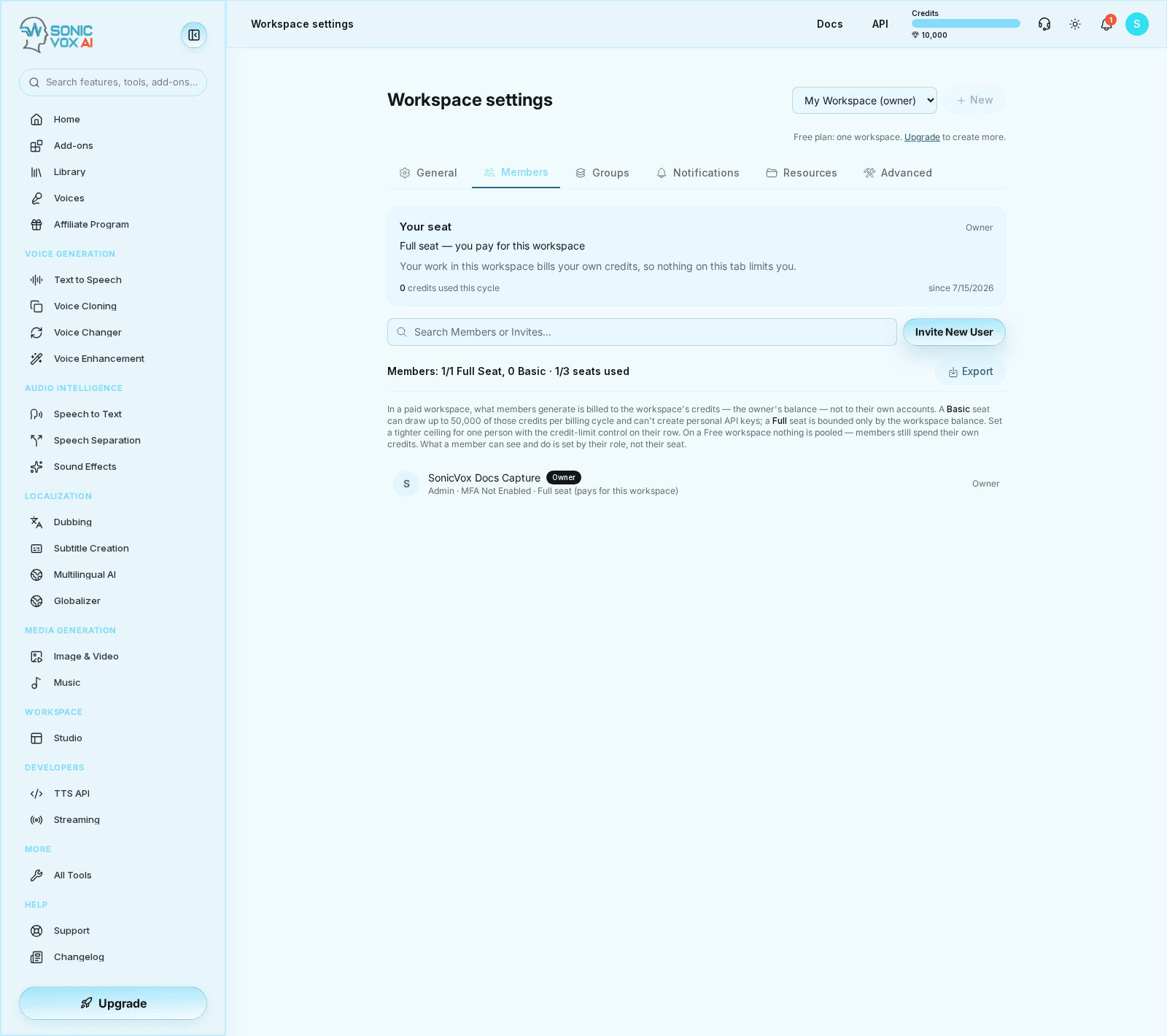
!The Members tab of Workspace settings

The line above the roster is the seat count for the workspace you are looking at: how many Full seats are in use out of the number your plan includes, how many Basic seats, and how many of the workspace's member seats are taken in total. Both numbers come from the owner's current plan, so they change when the owner upgrades, downgrades or cancels.
The four roles
A workspace has four roles: owner, admin, member and viewer. Owner is not assignable — it belongs to whoever created the workspace and moves only through ownership transfer. The other three are what you pick when you invite someone, and what the role dropdown on a member's row can change them to.
| Role | What it grants |
|---|---|
| Owner | Everything an admin can do, plus the three things only the owner can do: transfer ownership, delete the workspace, and be the account that pays. The owner cannot be removed, cannot be suspended, and their role cannot be changed from the roster — transfer ownership instead. |
| Admin | Invite, remove, suspend and restore members; change roles, seat tiers and per-member credit limits; rename the workspace and change its General settings; manage workspace secrets, webhooks, auth connections and SAML/SCIM; read workspace analytics and the activity log. Admins also hold admin-level access to every resource created in the workspace. |
| Member | Works in the workspace. Holds none of the management grants above — the controls on other people's rows are not shown, and the server refuses them regardless of what the screen offers. |
| Viewer | The least-privileged role. It holds no workspace grants at all — not even the baseline one a member holds, so surfaces gated on plain membership (reading the workspace's agent defaults, for example) refuse a viewer. It is also the fallback for a role value the system does not recognise, so nothing corrupt can ever read as more access than intended. |
Two things roles deliberately do not decide:
- Spending. Nothing in the credit path reads the role. What someone may spend is decided by their seat, their per-member limit, and any billing group they are in — see the next two sections.
- Access to a specific voice, clone or project. Sharing on the Resources tab carries its own permission (viewer, editor or admin) per resource, independent of the workspace role. A workspace member can hold an editor grant on one project and nothing at all on the next.
Promoting someone to Admin in a paid workspace also moves them to a Full seat, and that promotion is refused outright when your plan has no Full seat left. Demoting them again does not move the seat back — take the seat down deliberately with the seat dropdown if that is what you want.
Full and Basic seats
Every workspace member holds one of two seat tiers. The seat is a spending control, and it only means something once the workspace pools credits — which happens when the workspace owner is on a paid plan. In a paid workspace, what a member generates is billed to the owner's balance rather than their own account.
| Full seat | Basic seat | |
|---|---|---|
| Credits per billing cycle | No ceiling of its own — bounded by the workspace balance | At most 50,000 of the workspace's credits |
| Personal API keys | Allowed | Refused: "Your seat type does not allow creating API keys" |
| Counted against | Your plan's Full-seat allowance | The workspace member limit only |
New members land on a Basic seat unless the invite explicitly asks for Full. That is the safe default: a Full seat is an uncapped claim on the payer's balance, so it has to be something the plan bought rather than something everyone gets by accident.
Three other details worth knowing before you hand out seats:
- The owner always holds a Full seat and is never capped. They are the payer, their own work is never pooled, and a credit limit set on them would bind nothing — the product refuses to set one.
- Free workspaces pool nothing. Members of a Free-plan owner's workspace still spend their own credits, so no ceiling on this tab limits them. The seat still gates personal API keys.
- A per-member credit limit and a billing group budget can be tighter than the seat. When more than one ceiling applies, the tightest one wins. Set a per-member limit with the credit-limit button on the member's row; billing-group budgets live on the Groups tab and are shared across everyone in the group.
The billing cycle these ceilings are measured over is the owner's cycle, not the calendar month, so an allowance resets when the payer's subscription renews.
How many seats your plan includes
Two independent allowances come from the workspace owner's live plan. "Members" is how many people may be in the workspace. "Full seats" is how many of them may spend the pooled balance without a per-member ceiling — the owner occupies one of them.
| Plan | Members | Full seats |
|---|---|---|
| Free | 3 | 1 |
| Starter | 5 | 1 |
| Creator | 5 | 1 |
| Pro | 10 | 3 |
| Scale | 10 | 3 |
| Business | Unlimited | 10 |
| Enterprise | Unlimited | 11 by default, set per contract |
Both allowances are read from the owner's plan at the moment you act, never from a stored copy, so an upgrade takes effect immediately and a downgrade is equally immediate. If the owner's billing has lapsed — an unpaid, paused, incomplete or cancelled subscription — both fall back to the Free numbers. A past-due subscription is still in grace and keeps its allowances while the card is retried.
When you try to move someone to a Full seat and the allowance is gone, the change is refused with a message naming the allowance, pointing out that the owner holds one of the seats, and offering both ways out: move another member to Basic, or add Full seats. Nothing is changed in the meantime. Existing Full members are never silently demoted when a plan shrinks — the allowance is enforced on new invites and on promotions only.
Invite one person
- Open the Members tab at
/app/settings/teamand check the seat line. If the workspace is at its member limit, the Invite New User button is disabled and says so.
- Click Invite New User and type the address into the box.
- Choose the role — Member, Admin or Viewer. Picking Admin moves the seat selector to Full when your plan has one spare, because an admin who cannot spend past a Basic ceiling ends up handing out spending power they do not have themselves.
- Choose the seat — Basic (capped at 50,000 credits per cycle) or Full. The Full option is disabled when your plan has none left.
- Click Send invite. If the address already has a SonicVox account, they get a pending membership plus an in-app notification and an email. If it does not, they get an emailed invite whose link walks them through creating an account with that address and then joins them to the workspace.
The invite expires in 14 days, and it holds a seat from the moment you send it. You can send one invite to the same address every 10 minutes, and up to 20 invites an hour in total.
One asymmetry to plan around: an invite to an address with no account yet always lands on a Basic seat when it is redeemed, whatever seat you asked for. The product says so on the result row rather than silently downgrading them. Move them up once they accept.
Invite several at once
The same dialog takes a list. Paste addresses separated by commas, semicolons, spaces or new lines; the Name <address@company.com> form that mail clients and directory exports produce is understood, and the display name is dropped.
- Paste the list. Up to 20 addresses per batch — that is the same number as the hourly invite limit, so a longer list could only come back throttled halfway through. Duplicates are collapsed case-insensitively and the order you pasted is kept.
- Set the role and seat once for the whole batch.
- Send. The seat maths is settled before anything is mailed: if the list needs more seats than your plan leaves free, the whole batch is refused and nobody is invited, with a message saying how many seats are free and how many the list needed. The same check runs against your Full-seat allowance when the batch asks for Full seats.
- Read the per-address results. The dialog stays open and reports every address individually — invited, emailed, skipped or failed — so you can see which three of twenty did not land and why. People who are already members, and addresses whose earlier invite is still live, are skipped without consuming an invite.
Re-sending to an address that already has a live invite is deliberately a one-address action, not something a pasted list does by accident: re-sending rotates the token and kills the link already sitting in their inbox.
Pending invites
An invite that has not been accepted shows up in two places on the Members tab.
- People who already have an account appear in the roster with a Pending badge. They hold a seat, but they are not members yet: until they accept, they cannot see or act on anything in the workspace.
- Addresses with no account yet appear under Invited by email — no account yet, with the date the invite expires and a delete button that revokes it. Revoking kills the emailed link and frees the seat immediately.
The person you invited accepts or declines from the banner at the top of this same page. Declining is real — it removes the pending row and frees the seat, so an unsolicited invite does not stay attached to someone's account forever.
Expired invites stop being acceptable and are cleared out the next time anyone is invited to that workspace, so a lapsed invite does not hold a seat indefinitely.
Suspend someone
Suspending is the reversible option, and it is the lock icon on the member's row. Use it when access needs to stop today but the person may be back, or while you decide.
What suspension blocks, immediately on their next request:
- access to the workspace, including every voice, clone and studio project shared into it
- every workspace settings surface
- pooled billing — their work stops drawing on the owner's balance and goes back to their own account
What it does not touch: their SonicVox account, their own resources, and any other workspace they belong to. Their seat is still counted as taken, because they are still on the team.
Two rules the screen enforces for you: the owner cannot be suspended, and you cannot suspend yourself. And restoring is capped like an invite is — if active members already fill the plan's seats, the restore is refused until you suspend someone else or add seats.
Suspension is also what a billing downgrade does on your behalf. When a plan shrinks below the number of people in the workspace, the newest members over the cap are suspended rather than removed, and the owner is told to restore whoever they want to keep. Those automatic suspensions are undone by themselves when the cap goes back up; a lock an admin applied deliberately is never auto-undone by an upgrade.
Remove someone
Removing is the trash icon on the row, and it is not reversible in the way suspension is. The owner cannot be removed — transfer ownership first.
When you remove someone:
- Their seat is freed right away, and you can invite someone else into it.
- Grants made to them are deleted. Every voice, clone and project that was shared with that person specifically stops being shared, and those grants do not come back if you re-invite them — a new membership is a new grantee.
- Their own work stays theirs. Removal deletes no voices, clones or projects. What they created keeps belonging to their account.
- Anything they created while this workspace was active stays stamped with the workspace, so the owner and admins keep admin-level access to it. Nobody else can share it out any more, though: only resources belonging to a current member of the workspace can be granted to anyone.
- Grants they gave to other people keep working. Nothing cascades. If those shares should end too, a workspace owner or admin can clear them from the Resources tab.
- Workspace API keys they created keep working. A key authenticates on its own secret and is never re-checked against the creator's membership, and it keeps spending the workspace owner's allowance. The product will not revoke them for you — those keys are usually wired into production systems — so it counts them instead and sends the owner and admins a prompt to review and rotate.
If your reason for removing someone is that they are leaving temporarily, or that you have not decided yet, suspend them instead. Suspension cuts the same access and keeps the shares intact; removal throws the shares away and you cannot get them back by re-inviting.