Sharing voices and projects
Give someone in your workspace access to a voice, a voice clone, or a Studio project you made, at a permission level you choose.
What you can share
Sharing covers five kinds of resource, and only these five. Nothing else in SonicVox — dubbing jobs, transcripts, sound effects, generation history — has a sharing grant behind it.
| Resource type | Listed in the tab as | What the grant reaches |
|---|---|---|
| Voice | Voices | A voice in your Voices library — saved, designed, or cloned into a library entry |
| Voice clone | Voice Clones | A clone record created from a reference sample |
| Studio project | Studio Projects | A Studio Editor project, together with its blocks, settings, uploads and video |
| Library folder | Library Folders | A folder in your asset library and everything beneath it — the grant is resolved down the tree at read time, so files added later are covered without re-sharing |
| Library file | Library Files | A single asset in your library |
The resource has to have been created by someone the workspace still counts as a member. It does not have to have been created inside that workspace — a voice you made in your personal workspace can be shared into a team workspace you also belong to.
Who can share
Grant authority is decided per resource, not by your workspace role alone. You can share a resource if any one of these is true:
- you are the owner or an admin of the workspace (blanket authority over everything in it)
- you created the resource
- you hold an explicit admin grant on that resource
A viewer or editor grant does not let you pass access on. That is deliberate: if it did, access would spread one hop past the person who authorized it, and nobody could answer "who can use this voice?" from the share list alone.
The Resources tab shows the share form to every member, because the app cannot tell from the outside which resources you created. The server is the authority — if you try to share something you have no standing on, the share is refused with a message telling you to ask a workspace owner or admin.
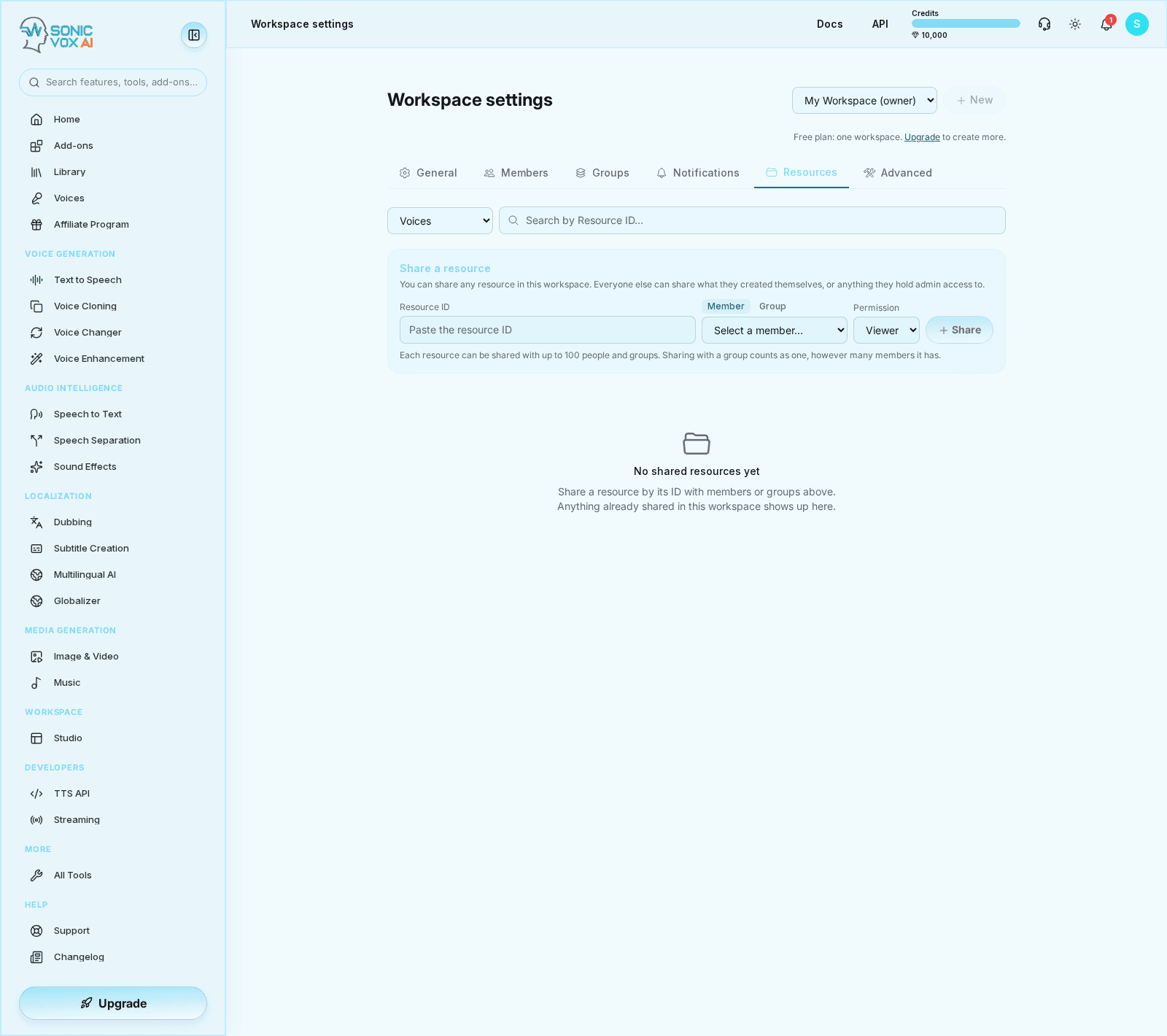
Open the Resources tab
Open Workspace settings from the workspace switcher in your profile menu (or from the workspace chip in the sidebar), then choose the Resources tab. The direct route is /app/settings/team?tab=resources.

Two things about this tab are worth knowing before you use it:
- It is keyed by resource ID. It does not list every voice in the workspace — it lists what has already been shared, grouped by resource.
- The Search by Resource ID box filters that list of existing shares. It is not a search over your library.
Share a resource
- Pick the resource type
Use the dropdown at the top left — Voices, Voice Clones, or Studio Projects. Switching type reloads the list of existing shares and clears the search box.
- Get the resource ID
For a voice, open the overflow menu on its card in Voices and choose Copy voice ID. For a Studio project, the ID is the last segment of the project URL, /app/studio/<projectId>. Voice clones have no copy-ID control in the app today, so if you do not already have the ID, ask whoever created the clone.
- Paste the ID into Resource ID
The server checks that the ID resolves to a real resource of that type created by an active member of this workspace. A wrong or foreign ID is rejected rather than silently creating a dead grant.
- Choose who gets it
Switch between Member and Group, then pick from the dropdown. Only members who have accepted their invitation and are not suspended are listed; the group list includes Everyone.
- Choose the permission and share
Pick Viewer, Editor, or Admin, then click Share. Sharing again to the same person or group does not create a second grant — it changes the existing one to the new level.
Share to a group when more than two or three people need the same resource. A group is one grant no matter how many people are in it, so it stays readable in the share list and it keeps updating itself as people join and leave.
Sharing with a person versus a group
A member grant names one person. A group grant covers whoever is in that group at the moment access is checked, so you never have to revisit the share when the group changes.
The Everyone group is a special case: its roster is virtual. It always matches every live member of the workspace, with no membership rows to maintain, so a grant to Everyone reaches anyone who joins later and stops reaching anyone who is removed, suspended, or deprovisioned — without you touching the share.
A grant only resolves for someone the workspace currently treats as live. If the recipient is suspended, deprovisioned, or has not yet accepted their invitation, the grant gives them nothing for as long as that lasts, and starts working again if they come back. If the grantee is removed outright, the grant renders as Removed member or Removed group in the list — harmless, but it stays visible until someone revokes it.
What each permission level allows
The three levels do not mean the same thing for all three resource types. Read the row for the type you are actually sharing.
Voices
| Level | What it allows |
|---|---|
| Viewer | The voice appears in the recipient's Voices under My Voices. They can preview it, download it, and generate speech with it anywhere a voice is selected, including Text to Speech, Studio and the API. |
| Editor | Everything Viewer allows, plus renaming the voice, editing its labels and topics, setting its playback volume, remixing it in Voice Design, and saving it to their own collection. |
| Admin | Everything Editor allows, plus sharing the voice onward and revoking existing shares. It confers no additional power over the voice itself. |
Deleting a voice is never granted by a share. Only the person who created it can delete it.
Studio projects
| Level | What it allows |
|---|---|
| Viewer | Open the project, load its blocks, settings, audio uploads and video. |
| Editor | Everything Viewer allows, plus renaming the project, adding, editing, reordering and deleting blocks, generating speech into it, setting its default voice, importing a generation, uploading audio, recording into it, and changing project settings. |
| Admin | Everything Editor allows, plus deleting the project, sharing it onward and revoking shares. |
Deleting a project is the one destructive Studio action that requires Admin — a shared editor cannot do it.
Voice clones
| Level | What it allows |
|---|---|
| Viewer, Editor, Admin | The clone appears in the recipient's clone list alongside their own. |
Be aware of the gap here: for voice clones the three levels currently differ only in who may re-share. There is no clone action today that Editor unlocks and Viewer does not, and none that Admin unlocks and Editor does not. Choose Viewer unless you specifically want that person to be able to hand the clone out to others.
The grantee limit
Each resource can be shared with at most 100 grantees — people and groups combined. The tab shows the running count as Shared with N of 100 and turns it amber at the ceiling.
A group counts as one grantee however many people are in it, which is why sharing wide should go through a group rather than through 40 individual grants. At the cap you can still change an existing grantee's permission level, so a resource at 100 grants is never frozen at an over-broad permission. Adding a new grantee, though, requires removing one first.
How "Default Access for New Resources" interacts with shares
This setting lives on the General tab of Workspace settings and only a workspace owner or admin can change it. It has two values, and Restricted is the default.
| Value | Effect |
|---|---|
| Restricted | Members reach nothing beyond what has been explicitly shared with them. |
| Open | Every live member of the workspace gets Viewer on the workspace's own voices, clones and Studio projects. |
Three things about how this combines with explicit shares:
- Explicit grants stack on top, they never subtract. Whichever is higher wins. With Open on, a Viewer grant adds nothing that person did not already have; an Editor or Admin grant still raises them. There is no way to share a resource at a level below what Open already gives, and no deny list.
- It applies to the workspace's own resources. A resource belongs to the workspace that was active when it was created. Something merely shared into this workspace from elsewhere is not covered by Open — the explicit grant is what carries it.
- The label says "New Resources", but the setting is evaluated live. It is not stamped onto resources at creation time. Turning it on exposes the workspace's existing resources too, and turning it back to Restricted withdraws that access again on the next read. Treat it as a switch over everything the workspace owns, not only what gets made from now on.
Separately, and regardless of this setting, workspace owners and admins hold admin-level access over the resources the workspace owns. That is oversight of the workspace's own resources; it does not extend to a resource that was created elsewhere and shared in.
Access is scoped to the active workspace
A share is resolved against the recipient's active workspace — the one selected in the workspace switcher. It does not travel with the person.
If you share a voice with someone in Acme Team, they see it while Acme Team is their active workspace. When they switch to their personal workspace, or to another team, that voice is gone from their library and from every voice picker. Nothing is deleted — the grant does not apply outside the workspace it was made in.
Two practical consequences:
- Before telling someone "it's in your library now", tell them which workspace to switch to. A recipient looking at the wrong workspace will report the share as broken.
- What you create yourself always stays yours in every workspace. Only shared-in access is workspace-scoped.
The same rule applies to you as the sharer: the Resources tab operates on the workspace shown in the selector at the top of Workspace settings.
Revoke access
- Find the resource
Select its type in the dropdown and, if the list is long, type part of the ID into Search by Resource ID.
- Remove the grantee
Each grantee is a chip showing the name, whether it is a member or a group, and the permission level. Click the x on the chip to revoke that grant.
Revoking takes effect on the recipient's next read — the resource drops out of their library and out of any picker that offered it.
Revoking requires the same authority as granting: the creator, an admin grant on the resource, or a workspace owner or admin. If you do not have it, the chips have no x and the resource is marked Sharing locked. That badge is about who can change the sharing, not about what you can do with the resource itself.
If a resource has been deleted, or the person who created it has left the workspace, only a workspace owner or admin can clear the leftover grants.