Sound Effects Generation Guide
Create custom sound effects from text descriptions using AI.
What is SFX Generation?
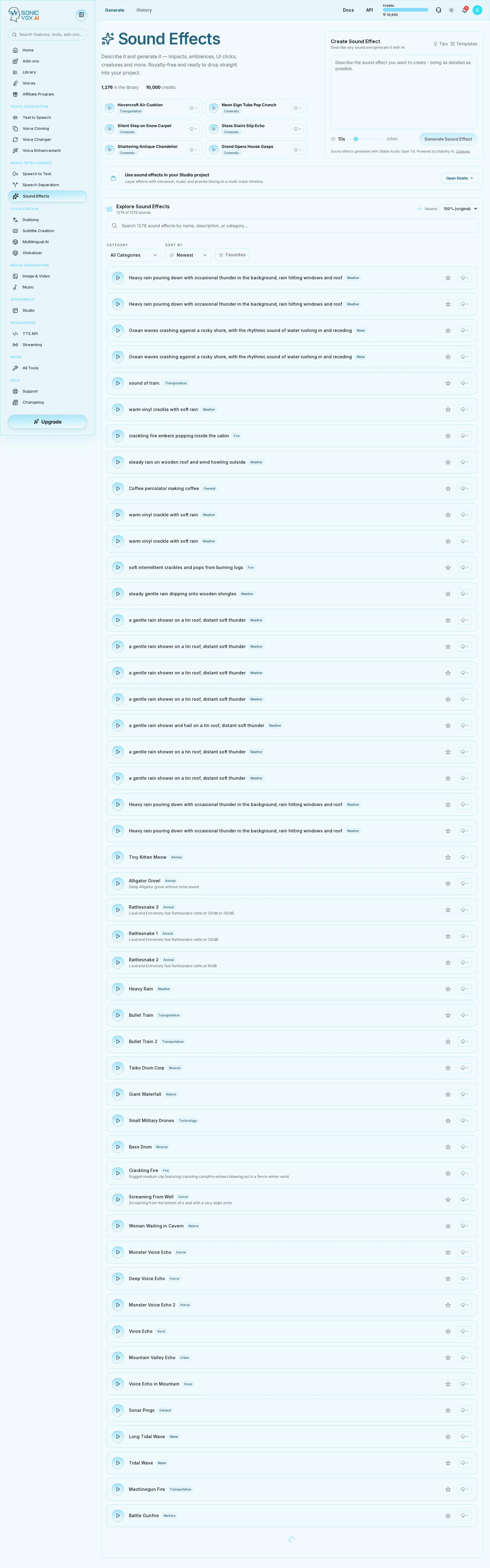
SonicVox's SFX generator uses AI to create unique sound effects based on your text descriptions. Simply describe the sound you want, and AI generates it.
How to Generate Sound Effects
Step 1: Open SFX Generator
Navigate to Sound Effects in the sidebar or access from Studio Editor.
Step 2: Describe Your Sound
Enter a detailed description, up to 500 characters — the counter under the box shows how much you have left:
- ✅ Good: "Thunder rolling in the distance with light rain"
- ❌ Vague: "Weather sound"
Step 3: Set the Length
Drag the Duration slider beside the counter. It runs from 1 to 47 seconds and starts at 10. The price is flat per generation, so a 47-second effect costs the same as a 1-second one.
Step 4: Generate
Click Generate Sound Effect. The button reads Creating... while the model renders; longer effects take longer.
Quality is not a control the app exposes: every request from the generator asks for high quality, and accounts on a plan without HQ audio are served the standard render instead — the generation still succeeds, it is simply not the high-fidelity version. Over the API you can ask for "standard" or "high" explicitly, with the same clamp applied.
Step 5: Preview and Save
Listen to the result, then save to your library or download.
Writing Effective Prompts
Be Specific
- "Metal door slamming shut in an empty warehouse"
- "Gentle ocean waves on a sandy beach at sunset"
Include Environment
- "Footsteps on wooden floor in a quiet room"
- "Car horn honking in busy city traffic"
Describe Intensity
- "Soft whisper of wind through leaves"
- "Loud explosion with debris falling"
Sound Categories
| Category | Examples |
|---|---|
| Nature | Rain, thunder, wind, birds |
| Mechanical | Engines, gears, machines |
| Human | Footsteps, breathing, crowds |
| Sci-Fi | Lasers, robots, spacecraft |
| Horror | Creaks, screams, eerie ambience |
Using SFX in Studio
- Open your project in Studio Editor
- Open the Sound Effects tab in the right sidebar
- Search the library and click an effect to add it, or click Generate New Sound Effect, describe the sound, set its duration, then Add to Timeline
- Adjust timing and volume
<!-- No "## Credits" section here on purpose. The docs page renders "What it costs" automatically from scripts/docs/pricing.ts, which derives the rate from CREDIT_COSTS.SOUND_EFFECT. A hand-written duplicate is a second number that can drift — which is exactly how this guide came to publish 100 credits against a real 180 for four months. One source, one place. -->