Speech to Text
Transcribe recordings, diarize speakers, capture subtitles, and export structured text outputs.
300 credits per minute of audio — A 30-minute interview costs 9,000 credits.
- Billed on the real duration once the transcript is settled, not on the file size.
What it looks like
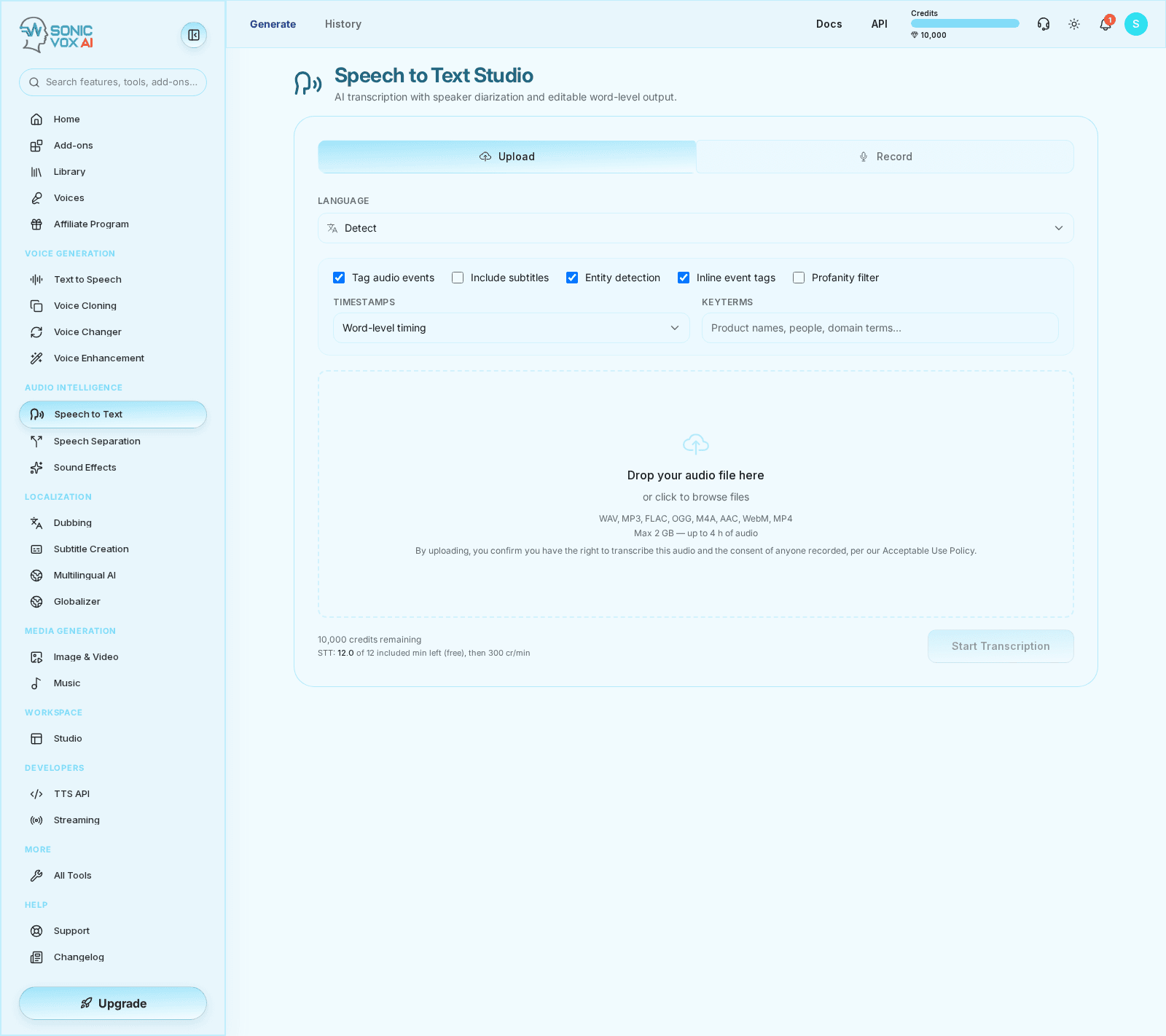
Overview
Speech to Text is the transcription workspace for SonicVox. It supports uploads, live recordings, speaker labeling, subtitle export, and downstream transcript editing.
Quickstart
Upload or record audio
Start with a file or live recording that you want transcribed.
Set speaker and language options
Pick a language or leave it on auto-detect, then turn on subtitles, audio-event tags, or entity detection as needed. Add Keyterms — names, brands, and domain words — so the model recognises them. Speaker diarization runs automatically and works out the speaker count for you.
Run transcription
Process the audio and wait for the structured transcript to be created.
Review and export
Open the transcript in the editor, then export TXT, SRT, VTT, or JSON.
Who this is for
Ideal users
- Teams converting meetings, interviews, and recordings into structured text
- Creators needing subtitles or exportable transcripts for publishing
- Operators preparing audio for analysis, indexing, and downstream automation
Before you start
- An audio or video source with intelligible speech
- A rough understanding of speaker count if diarization matters
- A target output format such as transcript text, subtitles, or JSON timing data
Settings
| Setting | Description | Values |
|---|---|---|
| Timestamps | Chooses word-level timing data or lighter segment-only timing. | — |
| Language | Lets the STT service detect language or work from an explicit hint. | — |
| Include subtitles | Produces caption-ready timing output alongside the transcript. | — |
Use cases
Interview and meeting transcripts
Convert long-form recordings into searchable text with speaker-aware structure for review and analysis.
Caption preparation
Generate subtitle-oriented outputs when the final goal is platform delivery rather than a long-form transcript editing workflow.
Input for dubbing and multilingual work
Use the transcript as the first layer before translation, replacement speech, and timing-aware localization.
Best practices
- Enhance noisy audio before transcription when recordings are difficult to hear.
- Add Keyterms before the first run, not after — they bias recognition as it transcribes, so they cannot fix a transcript that is already written.
- Export subtitle formats only after timing and punctuation review.
Troubleshooting
Speaker labels are messy or inconsistent
Likely cause
Diarization gets harder when the recording is noisy, overlapping, or the speaker count is unclear.
What to do
If possible, enhance the audio first, provide the target speaker count, and validate the result before exporting a final caption set.
The transcript is accurate enough, but the subtitles still need work
Likely cause
Caption delivery requires better segmentation and punctuation than many raw transcripts.
What to do
Treat transcript quality and subtitle quality as separate checks. Review line breaks, punctuation, and timing before shipping SRT or VTT exports.
FAQs
When should I use Speech to Text instead of Subtitle Creation?
Use Speech to Text when you need a deeper transcript workflow, more review, or structured exports. Use Subtitle Creation when your primary goal is a fast caption deliverable.
Should I clean audio before transcription?
Yes, especially for noisy or distant recordings. Enhancement first usually improves the reliability of both transcript content and speaker separation.
How accurate is the transcription?
High accuracy on conversational speech, technical jargon, accents, and noisy environments. Test it on your own audio in the dashboard.
Which languages are supported?
30+ languages including English, Spanish, Mandarin, Japanese, Hindi, Arabic, French, German, Portuguese, Korean, and more. Auto-detect and code-switching are built in.
Does it identify speakers?
Yes — automatic speaker diarization labels every utterance, even on overlapping conversations and multi-party calls. You can also map labels to known names.
Can I get word-level timestamps?
Yes. Every word comes with millisecond-precision start and end times. Build subtitles, click-to-play interfaces, and live captions effortlessly.
What audio formats do you accept?
MP3, WAV, FLAC, OGG, M4A, AAC, AIFF — up to 3 hours per file. Live streaming via WebSocket for real-time use.
Can I stream audio for live transcription?
Yes. WebSocket streaming with sub-second incremental output, ready for live captions, real-time agents, and call analytics.
What output formats do you provide?
Plain text, JSON with timestamps, SRT, VTT, and TSV — anything your stack expects.
Is my audio used to train models?
No. Customer audio is never used for training without explicit, written consent. Encrypted in transit and at rest, and you can delete your account and its data at any time.