Voice Cloning Guide
Learn how to clone voices in SonicVox to create personalized text-to-speech.
What is Voice Cloning?
Voice cloning creates a reusable digital voice identity from a short reference sample.
Once the clone is ready, you can use it across SonicVox workflows such as Text to Speech, Studio, and other voice-enabled tools that accept a voice ID.
Start with the cleanest sample you have. A short, high-quality recording usually performs better than a long noisy one.
Requirements
For best results, prepare your sample before you upload it.
| Requirement | Why it matters |
|---|---|
| About 10 seconds of speech | The number comes from the engines, not from taste. Signature, the default, characterises a voice from about three seconds. Classic accepts a reference of 3–10 seconds and uses only the first 10 seconds of anything longer. So 10 is the point where every engine is satisfied and nothing you recorded is thrown away. Both the upload form and the API (POST /api/v1/voices) accept 3–60 seconds and up to 25MB — a 60-second sample is legal, but on Classic 50 of those seconds are discarded before the model sees them. |
| Clear speech | Cleaner audio improves identity retention and reduces artifacts. |
| One speaker only | Multiple voices confuse the clone and lower quality. |
| WAV, MP3, FLAC, OGG, M4A | These are the formats the Clone Voice screen advertises. The file picker also accepts AAC and WebM, which is what browser recordings produce. |
Before uploading, make sure the sample:
- has low background noise
- does not include music or crowd ambience
- keeps a steady speaking tone
- represents the kind of delivery you want later in generation
How to Clone a Voice
Follow this workflow from start to finish for the cleanest result.
- Navigate to Voice Cloning
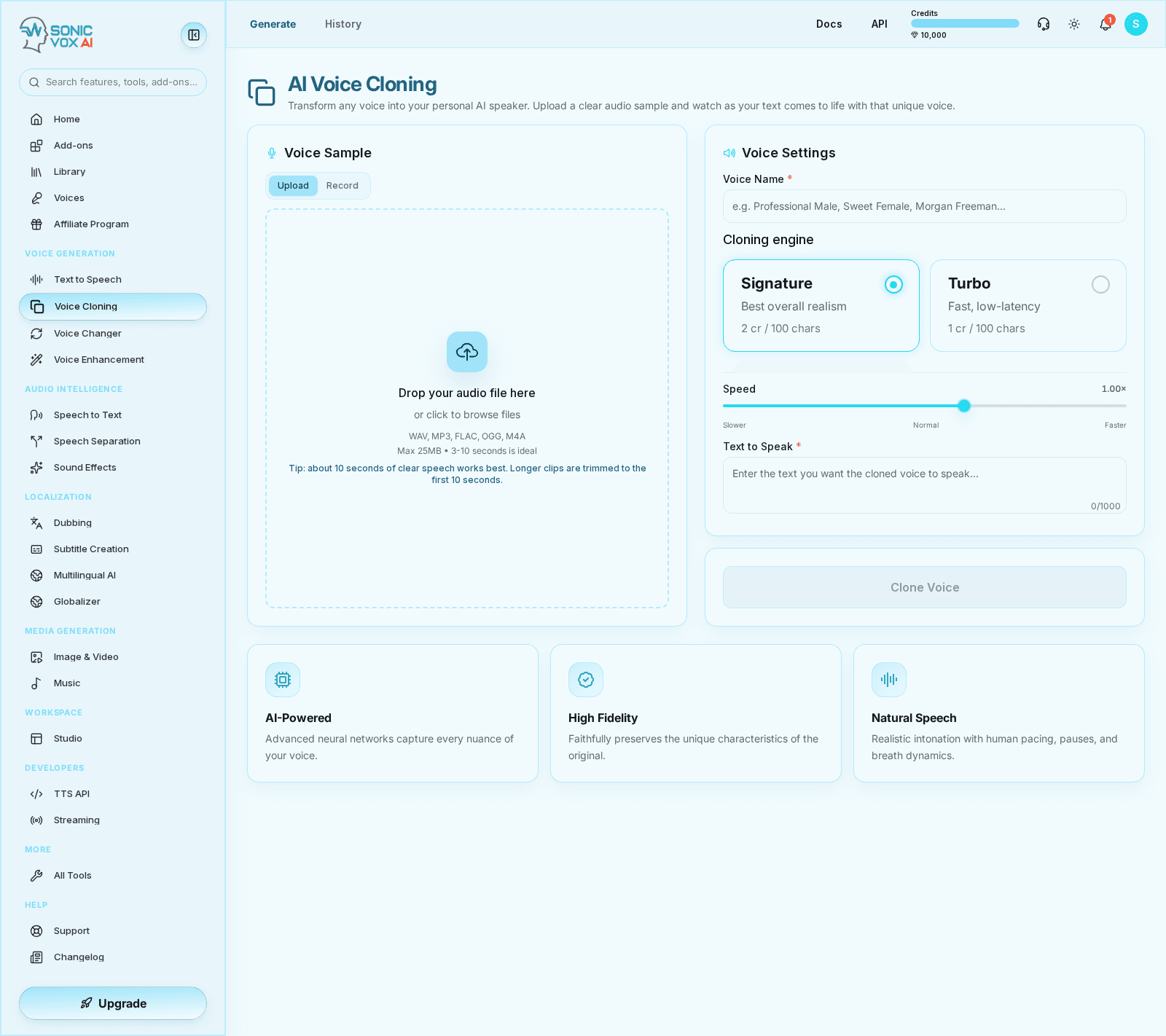
Voice Cloning is its own entry in the sidebar, under Voice Generation. It opens at /app/voice-cloning/generate.
- Add your sample
The Voice Sample card has two tabs, Upload and Record. On Upload (the default) the panel reads Drop your audio file here / or click to browse files, so you can either:
- click the drop area and choose a file
- drag and drop your recording onto it
- switch to the Record tab and capture about 10 seconds straight from your microphone
- Name the cloned voice
Fill in Voice Name with a clear label such as John's Voice, Narrator Style, or a team naming convention like Brand Host EN v1.
- Enter the text to speak
Text to Speak is required, not optional — the clone is created and immediately read back to you with that text. Leave it empty (or leave the voice unnamed, or the sample missing) and the button stays greyed out.
- Create the clone
Click Clone Voice. The screen shows Processing your voice clone… and warns This may take 30-60 seconds. Creating a clone spends credits from your balance — see What it costs on this page; speaking with the finished voice afterwards is billed at the normal Text to Speech rate.
- Validate the result
Use the new voice in a short Text to Speech test before committing it to a larger production workflow.
Using Cloned Voices
After the clone is created, it becomes available in multiple places inside SonicVox.
You can use it in:
- the voice selector in Text to Speech
- Studio Editor voice options for scripted blocks
- API-driven workflows that reference the voice ID
- agent and automation flows where a reusable brand voice is needed
Tips for Best Quality
Use these quality rules before you scale generation.
- Use professional or clean recordings whenever possible.
- Avoid music, effects, and room noise in the background.
- Choose a natural speaking tone rather than shouting, whispering, or performing exaggerated delivery.
- Test with short phrases first before generating a full script.
- Keep naming consistent so your team knows which clone is approved for production.
If the first result is not good enough, do not keep retrying the same noisy sample. Replace the source clip with a cleaner recording and create a fresh clone.
Limitations
- Voice cloning needs a Starter plan or above. The Free plan cannot clone at all — the feature is gated, not merely limited.
- Your plan caps how many custom voices you can keep: Starter 10, Creator 30, Pro 160, Scale 660, Business 660, Enterprise 2,000.
- Voice clones are private to your account unless your broader product workflow exposes them elsewhere
- Some accents, delivery styles, or recording conditions may need multiple attempts for the best result
When quality matters, treat the source sample as the foundation. A better recording usually improves the outcome more than repeated retries.